Introduction
Switching to a new iPhone is always exciting, but ensuring that your important photos, messages, and apps come with you can be a challenge. Knowing the best way to transfer data to your new iPhone will save you time and ensure that you don’t lose any of your important information.
This guide will walk you through the steps necessary to transfer data smoothly using various methods such as Quick Start, iCloud, iTunes/Finder, and third-party apps. It will also address troubleshooting common issues you might encounter.
Preparing for Data Transfer
Before diving into the actual transfer process, it is crucial to make sure your old iPhone is ready for the new journey. There are a couple of preparatory steps you need to take to ensure a seamless transfer.
Back Up Your Old iPhone
Backing up your old iPhone is the first and most important step. You'll want to ensure that all your data is safely stored, in case anything goes wrong during the transfer.
- Use iCloud: Navigate to Settings > [Your Name] > iCloud > iCloud Backup > Back Up Now.
- Use iTunes or Finder: Connect your iPhone to your computer, open iTunes (Windows or macOS Mojave and earlier) or Finder (macOS Catalina and later), select your device, and click 'Back Up Now.
Check for Software Updates
Ensuring both your old and new iPhones are running the latest version of iOS will minimize potential compatibility issues.
- On your Old iPhone: Go to Settings > General > Software Update.
- On your New iPhone: If it’s not already updated, follow the same steps.
Transfer Methods with Quick Start
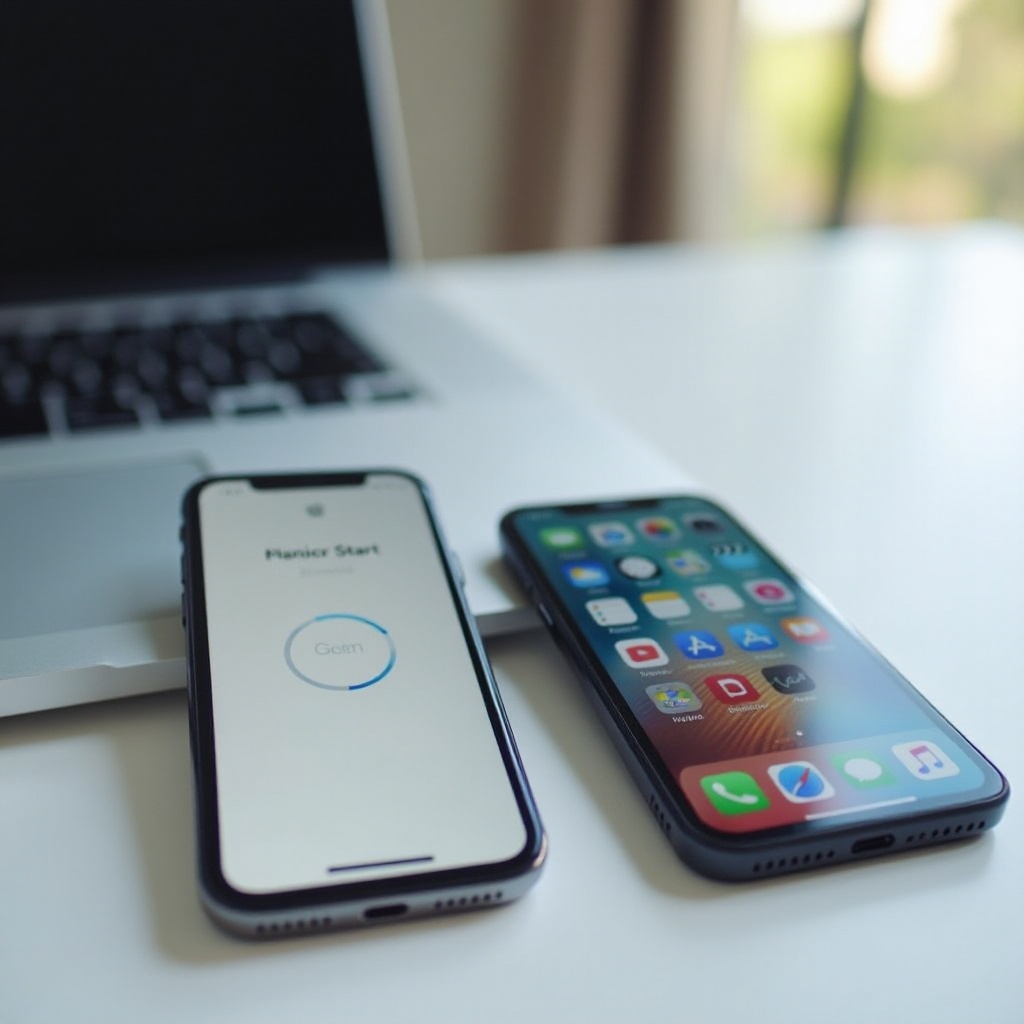
Having prepared your devices, we can move on to the transfer methods. One of the easiest ways to transfer data is by using Apple’s Quick Start feature.
Using Apple's Quick Start Feature
Quick Start simplifies the transfer process by automating many steps:
- Turn on your new iPhone and place it near your old iPhone.
- A Quick Start screen will appear on your old iPhone, offering to set up your new iPhone using your Apple ID.
- Verify your Apple ID and follow the onscreen instructions.
Step-by-Step Guide to Quick Start
- Hold the new iPhone near the old iPhone. The Quick Start screen should appear.
- Choose the Apple ID you want to use and press 'Continue.
- An animation will appear on the new iPhone. Hold your old iPhone over the new one until the animation is visible through the viewfinder.
- Enter the old iPhone’s passcode on the new iPhone.
- Follow the prompts to set up Face ID or Touch ID on the new iPhone.
- Choose the option to transfer data from the old iPhone to the new iPhone.
Using iCloud for Data Transfer
If you prefer or need a wireless option, iCloud is an excellent alternative for transferring data.
Setting Up iCloud Backup
- On your old iPhone, go to Settings > [Your Name] > iCloud > iCloud Backup > Back Up Now.
- Wait for the backup to complete. Make sure your device remains connected to Wi-Fi during this process.
Restoring from iCloud to the New iPhone
- Turn on your new iPhone and follow the setup steps until you reach the 'Apps & Data' screen.
- Select 'Restore from iCloud Backup.
- Sign in to your iCloud account with your Apple ID.
- Choose the most recent backup of your old iPhone.
- Continue with the restore process until all your data is transferred.
Transfer via iTunes or Finder
For those who prefer a wired solution or have insufficient iCloud storage, using iTunes or Finder to transfer data is also a reliable method.
Backing Up Your Old iPhone Using iTunes/Finder
- Connect your old iPhone to your computer.
- Open iTunes (Windows or macOS Mojave and earlier) or Finder (macOS Catalina and later).
- Select your device, then click 'Back Up Now.
Restoring Data to the New iPhone
- Connect your new iPhone to the same computer.
- On the setup screen, choose to restore from an iTunes/Finder backup.
- Select the most recent backup and follow the onscreen instructions to complete the restore.
Using Third-Party Apps
Should you face any limitations with Apple’s built-in solutions, several third-party apps are available to assist with transferring data.
Overview of Top Data Transfer Apps
Here are some popular apps that can help:1. AnyTrans: A powerful iPhone manager that simplifies data transfer.2. Dr.Fone - Phone Transfer: Offers a seamless data transition between devices.3. Move to iOS: Suitable for those switching from an Android device.
How to Use These Apps for Seamless Transfer
Each app has its specific instructions, but the general process involves:1. Downloading and installing the app on your computer.2. Connecting both old and new iPhones to the computer.3. Following the app’s steps to complete the data transfer.
Troubleshooting Common Issues
Even with the best preparation, you might encounter some issues during the data transfer process. Here are a few tips to overcome common problems:1. Connection Issues: Ensure both devices are on the same Wi-Fi network and close to each other.2. Incomplete Transfer: Check if both devices are running the latest iOS version. Retry the process if necessary.3. Insufficient Storage: Ensure the new iPhone has enough storage to accommodate the transferred data.

Conclusion
Transferring data to your new iPhone doesn’t have to be stressful. Whether you use Quick Start, iCloud, iTunes/Finder, or third-party apps, these methods will help you ensure a complete and smooth data transfer. Choose the option that best fits your needs and follow the steps closely for a seamless transition to your new device.
Frequently Asked Questions
What is the fastest transfer method for large amounts of data?
Using a wired transfer via iTunes or Finder is often the fastest method for transferring large amounts of data, as it doesn’t rely on Wi-Fi speeds.
How do I ensure no data is lost during transfer?
Always create a full backup of your old iPhone before beginning the transfer process. Verify the integrity of the transferred data on your new iPhone before wiping any old data.
Can I transfer data without using a computer?
Yes, you can use Apple’s Quick Start feature or iCloud to transfer data wirelessly between your old and new iPhones without the need for a computer.