
Introduction
Group messaging can be extremely useful, allowing people to communicate with multiple contacts at once. However, it can also become overwhelming with constant notifications and messages that may not always be relevant. Whether you're using iMessage on iPhone, Android Messages, or a third-party app like WhatsApp, this guide will help you get your phone off of group messaging quickly and easily.
Understanding how to navigate away from constant group messaging is crucial for maintaining your digital peace. We will walk you through the steps on various platforms, troubleshoot common issues, and offer alternative strategies if leaving the group isn't an option.

Understanding Group Messaging
What is Group Messaging?
Group messaging allows users to send and receive text messages with multiple people in a single conversation. It’s useful for arranging plans, coordinating events, and staying in touch with groups of friends or colleagues.
Popular Group Messaging Platforms
Several platforms support group messaging. These include:- iMessage: Native to iOS devices, offering seamless messaging across Apple devices.- Android Messages: Google’s messaging app for Android users, supporting SMS, MMS, and RCS.- WhatsApp, Signal, Telegram: Popular third-party messaging apps available on both iOS and Android.
Understanding these platforms will help you find the best method to stop receiving group messages.
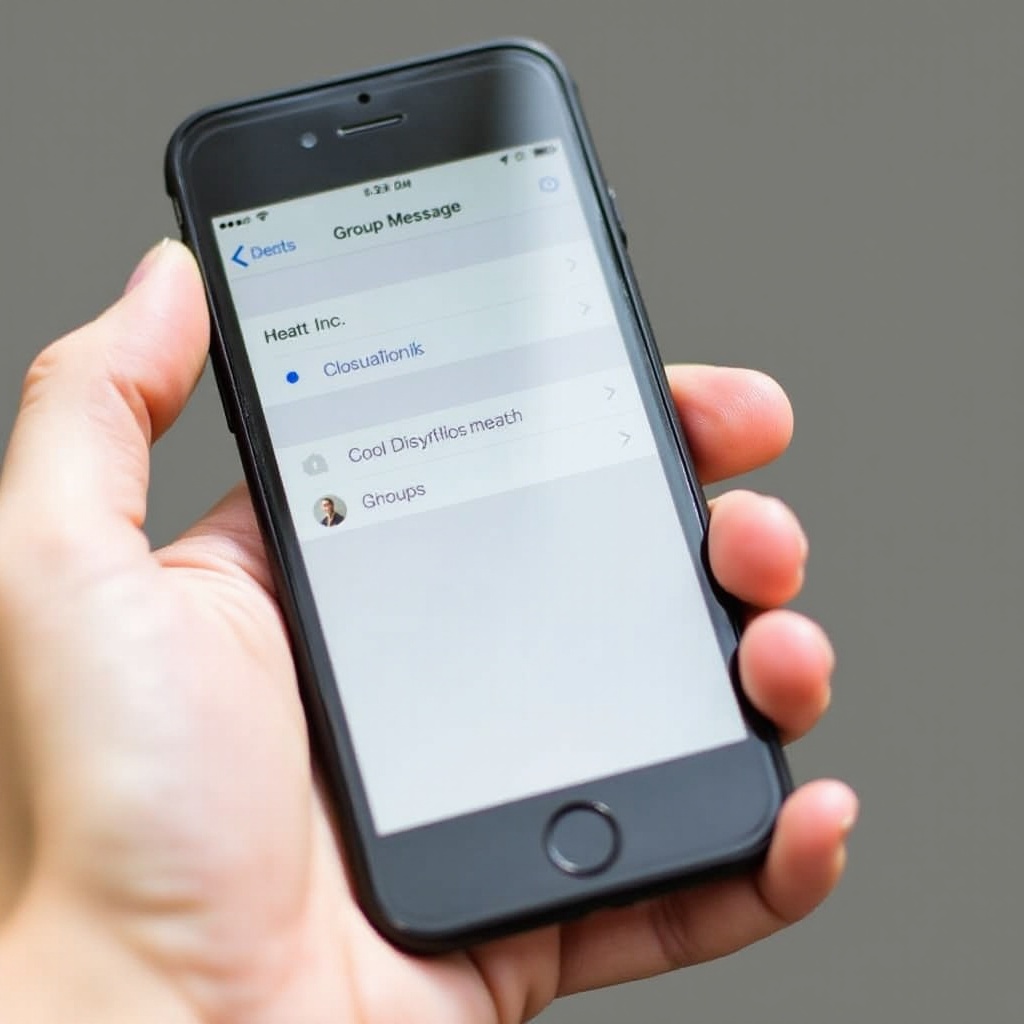
How to Get Off Group Messaging in iMessage (iOS)
Step-by-Step Guide
- Open the Messages app: Start by opening the Messages app on your iPhone.
- Select the group chat: Tap the group conversation you wish to leave.
- Tap the group name or contact photos at the top: This opens the group info.
- Select ‘Leave This Conversation’: Scroll down and tap this option. Confirm your choice.
Troubleshooting Common Issues
Sometimes, the 'Leave This Conversation' option may not be available. This typically occurs in groups of fewer than four people. Here’s what you can do:- Mute the conversation: Open the group info, toggle on the 'Hide Alerts' option to avoid notifications.- Ask the group creator to remove you: If possible, request the group administrator to remove you from the conversation.
How to Get Off Group Messaging in Android Messages
Step-by-Step Guide
- Open the Messages app: Launch the Android Messages app.
- Select the group chat: Tap on the group conversation you want to leave.
- Tap the three-dot menu: Located in the upper-right corner, select 'Details.
- Choose ‘Exit Group’: Confirm that you want to leave the group.
Dealing with Android Fragmentation
Because Android devices can vary significantly:- Consult your phone’s user manual: Some Android interfaces (like Samsung’s One UI) might have slightly different steps.- Update the app: Ensure that you’re using the latest version of Android Messages to access current features.
Managing Group Messages in Third-Party Apps
- Open the group chat.
- Tap the group name at the top.
- Scroll down and select ‘Exit group.’ Confirm your action.
Signal
- Open the group chat.
- Tap the three-dot menu in the upper right.
- Choose ‘Leave group’ and confirm.
Telegram
- Open the group chat.
- Tap the group name at the top.
- Select ‘Leave group’ and confirm.
Alternative Methods for Handling Group Messages
Muting Notifications
Muting is a middle ground if you prefer not to leave a group but want to stop notifications:- iPhone: Tap the group info, toggle ‘Hide Alerts.’- Android: Tap the group details, select ‘Notifications,’ then ‘Silent.’
Blocking Group Messages
Another alternative is blocking the contacts involved:- iPhone: Go to the group info, tap on a contact, and select 'Block this Caller.’- Android: Access the group details, tap a contact, and choose 'Block.’
Customizing Notification Settings
Adjusting notification settings can help manage message alerts:- iPhone: Go to Settings > Notifications > Messages, customize settings.- Android: Access Settings > Apps > Messages > Notifications, adjust preferences.
Conclusion
Managing group messaging is essential for controlling your digital environment. Whether you're using iPhone, Android, or any messaging app, you can either leave the group, mute notifications, or block messages. This guide provides the tools you need to tailor your communication experience effectively.
Frequently Asked Questions
Can I leave a group message without anyone knowing?
Leaving a group message will notify other members that you have left. However, muting notifications can help you ignore the conversation without alerting anyone.
Why can't I leave some group messages on my iPhone?
The 'Leave This Conversation' option may be unavailable in groups with fewer than four participants. In such cases, you can mute the conversation.
How do I mute notifications from a specific group chat?
For iPhone, go to the group chat info and toggle ‘Hide Alerts.’ For Android, access group details, then ‘Notifications,’ and select ‘Silent.’