
Introduction
As iPhones have become essential tools in our everyday lives, it’s equally important to manage internet access effectively.Whether it’s ensuring your child’s online safety, boosting personal productivity, or managing your data usage, knowing how to block internet access on an iPhone is crucial.This guide will walk you through the various methods to restrict internet access, making it easier to control your iPhone’s connectivity.
Understanding Why You Might Want to Block Internet Access
Parental Controls and Child Safety
Parents often need to monitor and restrict their children's internet usage to ensure safety and enforce appropriate behavior.Blocking the internet on an iPhone can prevent exposure to inappropriate content, cyberbullying, and excessive screen time.This protective measure is a significant step toward responsible parenting in the digital age.
Focus and Productivity Enhancement
Beyond parental concerns, many individuals, especially students and professionals, find the internet a source of distraction.Blocking internet access on an iPhone during study sessions or work hours can substantially enhance focus and productivity.By controlling when and how their devices connect to the internet, users can create a more disciplined and effective work environment.
Data Usage Management
Data plans can be expensive, and uncontrolled internet access can lead to excessive data usage and unexpected charges.Blocking the internet on an iPhone when not needed can help manage data consumption efficiently, ensuring that you stay within your data limits and avoid additional fees.
Using Screen Time to Block Internet Access
One of the most effective tools to manage internet access on an iPhone is the Screen Time feature.Introduced by Apple, Screen Time allows users to monitor and control their app and internet usage seamlessly.
Introduction to Screen Time Features
Screen Time offers various features designed to help users manage their device usage. With capabilities such as downtime scheduling, app limits, and content restrictions,it provides comprehensive control over how and when your iPhone can access the internet. The intuitive design makes it easy to set up and customize according to your needs.
Setting Up Screen Time on iPhone
- Open the 'Settings' app on your iPhone.
- Scroll down and tap on 'Screen Time.
- If Screen Time is not already turned on, tap 'Turn On Screen Time' and follow the prompts to set it up. You may need to create a passcode to secure your settings.
- Once Screen Time is enabled, tap 'Continue' and then 'This is My iPhone' or 'This is My Child's iPhone' based on who is using the device.
Customizing Downtime and App Limits
- Downtime: Tap on 'Downtime' and schedule times when you want to block internet access. The phone will only allow calls and apps you choose to exempt during this period.
- App Limits: Tap on 'App Limits' to set daily limits for app categories or individual apps. For example, you can limit social media apps to one hour per day, effectively reducing internet usage.
- Customize: Under 'Always Allowed,' select essential apps that you want to remain accessible even during downtime, such as phone calls or messaging apps.
Blocking Internet Using Content & Privacy Restrictions
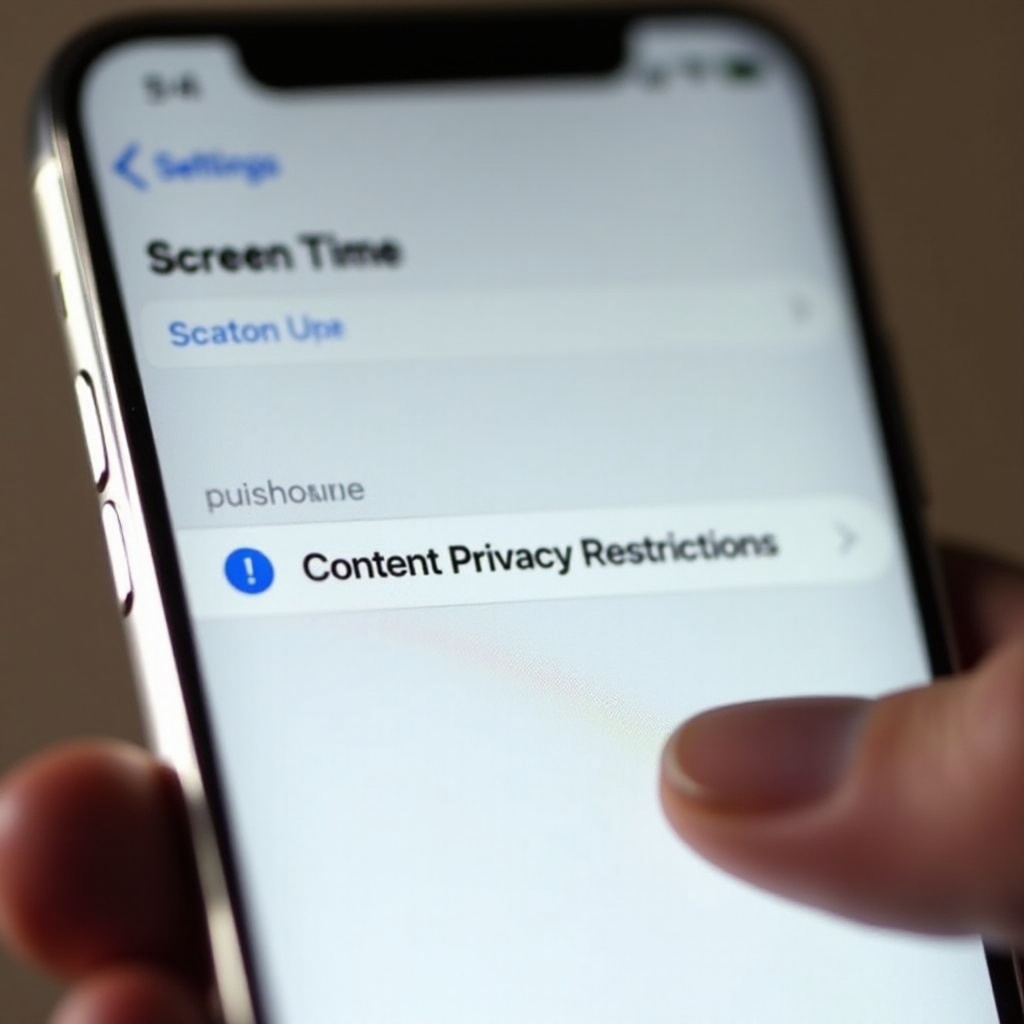
Another effective method is leveraging Content & Privacy Restrictions within Screen Time, allowing for a more granular approach to blocking internet content.
Enabling Content & Privacy Restrictions
- Go to 'Settings' and then 'Screen Time.
- Tap on 'Content & Privacy Restrictions' and toggle it on. You may be prompted to enter your Screen Time passcode.
- Under 'Content & Privacy Restrictions,' you’ll find multiple options to control what content is accessible on your iPhone.
Blocking Web Content on iPhone
- Within 'Content & Privacy Restrictions,' tap 'Content Restrictions.
- Select 'Web Content' and choose 'Limit Adult Websites' or 'Allowed Websites Only.' The latter option allows you to specify which websites can be accessed, effectively blocking all others.
- You can add specific websites to both the 'Always Allow' and 'Never Allow' lists.
Using Third-Party Apps for Extra Control
In addition to Apple’s built-in features, third-party applications provide enhanced control over internet access.Apps like Qustodio, Net Nanny, and OurPact offer advanced parental controls, detailed usage reports, and the ability to lock internet access entirely or selectively:
- Qustodio: Offers comprehensive internet blocking, including social media and games.
- Net Nanny: Provides real-time usage alerts and filtering options.
- OurPact: Features internet blocking, app scheduling, and location tracking.
Additional Tips and Resources
While Screen Time and Content & Privacy Restrictions offer robust control, there are additional measures you can take for versatile internet management.
Using Network Settings for Temporary Blocks
To block internet access temporarily, you can disable Wi-Fi and cellular data in the Settings app:- Open 'Settings.- Tap 'Wi-Fi' and turn it off.- Go back, tap 'Cellular,' and toggle 'Cellular Data' off. This will block all internet access until re-enabled.
Consulting Apple Support for Advanced Restrictions
For more advanced restrictions and technical support, consult Apple Support. They offer detailed guides and can help you troubleshoot specific issues related to internet control on iPhones.
Recommended Third-Party Parental Control Apps
For comprehensive control and monitoring, consider the following apps:1. Norton Family: Offers complete web monitoring, time supervision, and real-time alerts.2. Kaspersky Safe Kids: Features GPS tracking, internet blocking, and device usage reporting.3. MMGuardian: Provides detailed SMS and internet usage monitoring, and sets time limits.
Conclusion
Blocking the internet on an iPhone is a strategic move for ensuring safety, enhancing productivity, and managing data usage.By utilizing built-in features like Screen Time and Content & Privacy Restrictions, as well as third-party applications, you can take full control of how and when your iPhone accesses the internet.Use these tools responsibly to create a balanced and secure digital environment.
Frequently Asked Questions
How can I monitor internet usage on my iPhone?
To monitor internet usage, you can use the Screen Time feature on your iPhone. It provides detailed reports on how much time is spent on different apps and websites.
Can I block the internet for certain apps only?
Yes, using Screen Time’s App Limits feature, you can set limits for individual apps or categories, effectively blocking internet access for those apps beyond the specified limit.
Are there any apps that help restrict internet access?
Yes, there are several apps such as Qustodio, Net Nanny, and OurPact that offer advanced internet restriction features. They allow for more flexibility and detailed control over internet access.